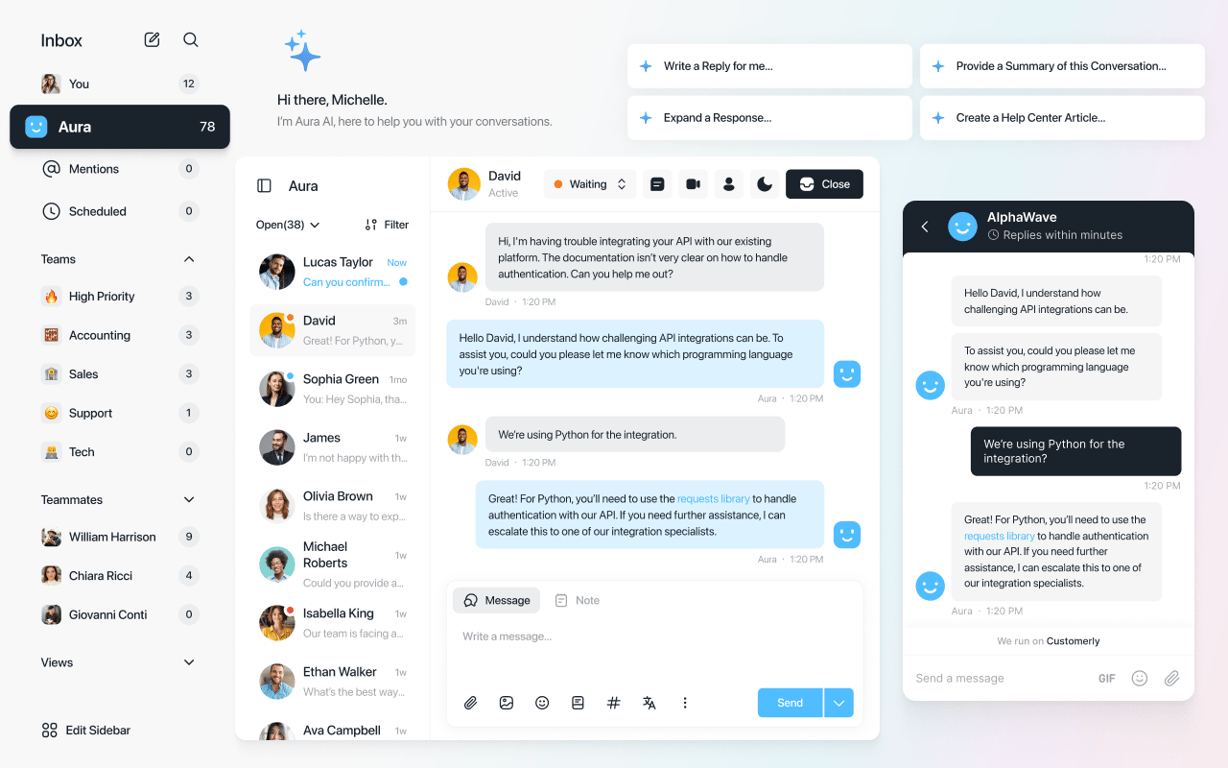


Teammate Away Mode lets your teammates mark themselves as Away when they are not available to handle customer conversations. Colored status dots then show everyone in the inbox who is available and who is not.
How teammate statuses work
Each teammate gets a colored status dot:
- Green dot: the teammate is available.
- Orange dot: the teammate has turned on Away Mode and is unavailable.
Where you see teammate availability
- Inbox left sidebar: every teammate is listed, with a green or orange dot next to their name.
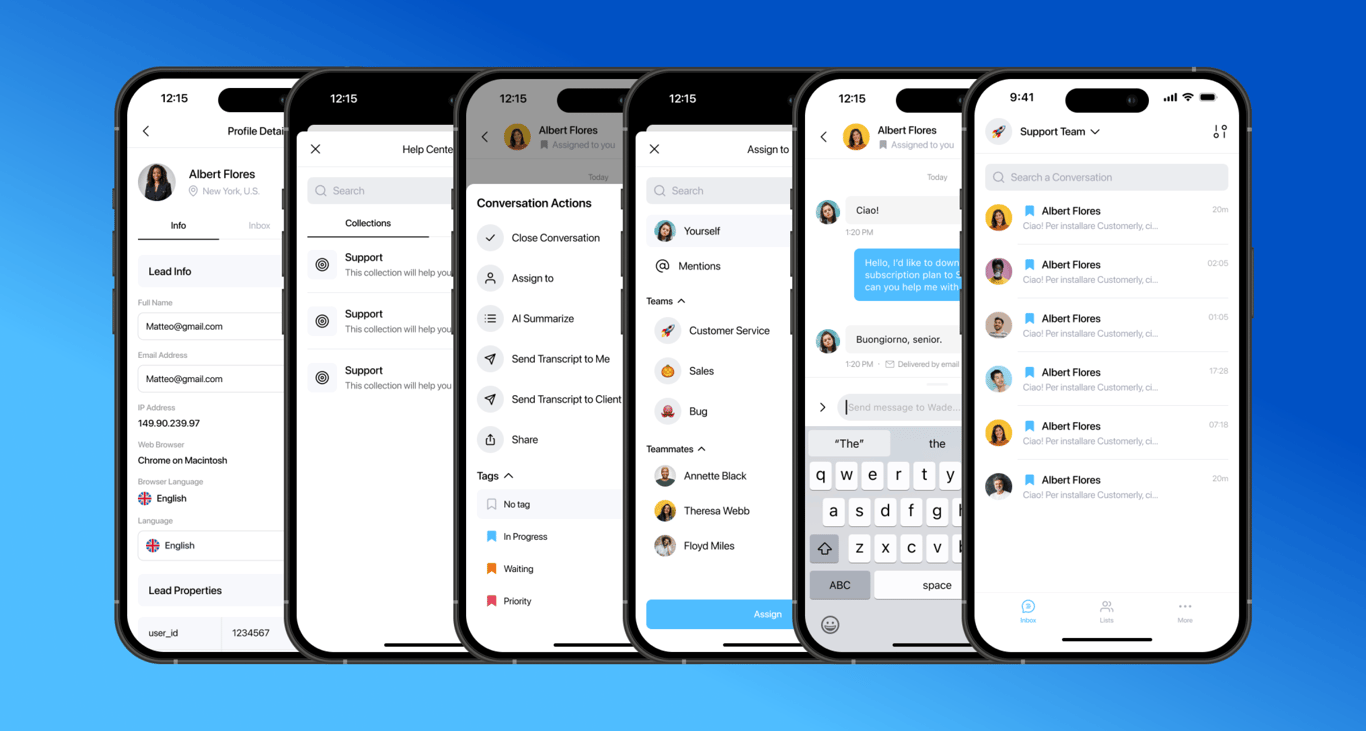
- Assign menu: when you assign a conversation, you see each teammate's availability, so you can spot who is ready to take it without extra follow-ups.
Turn on Away Mode
- Click your profile picture at the bottom left of Customerly.
- Turn on the Away Mode switch.
- An orange dot appears next to your picture, so your teammates see your status.
Why Away Mode helps your team
- Clear communication: everyone knows who is actively available to handle conversations.
- Better workload distribution: you avoid assigning conversations to teammates who are away.
- Fewer interruptions: you decide on assignments without interrupting others.
Tips to keep statuses accurate
- Turn it on when you step away: encourage teammates to switch on Away Mode whenever they leave their desks.
- Check before you assign: look at the Assign menu to confirm who is available before assigning conversations.