

New featureMore from November 2026

Bulk actions: close, assign, tag, snooze or delete many conversations

Select many conversations in the inbox, or a whole inbox, and close, assign, tag, snooze or delete them in one go, with large jobs running in the background.

In short

  • Select conversations like emails and act on all of them at once
  • Five actions: close, assign, change tag, snooze and delete
  • Select a whole inbox, team inbox or view, not just the rows on screen
  • Large actions run in the background, with a history in Settings
Video tutorial: How to Close, Assign or Tag Many Conversations at Once | Customerly

After a launch or a busy Monday, many conversations need the same thing: close the solved ones, hand a batch to another team, park the rest until tomorrow. Now you select them in the inbox and act on all of them at once.

How it works

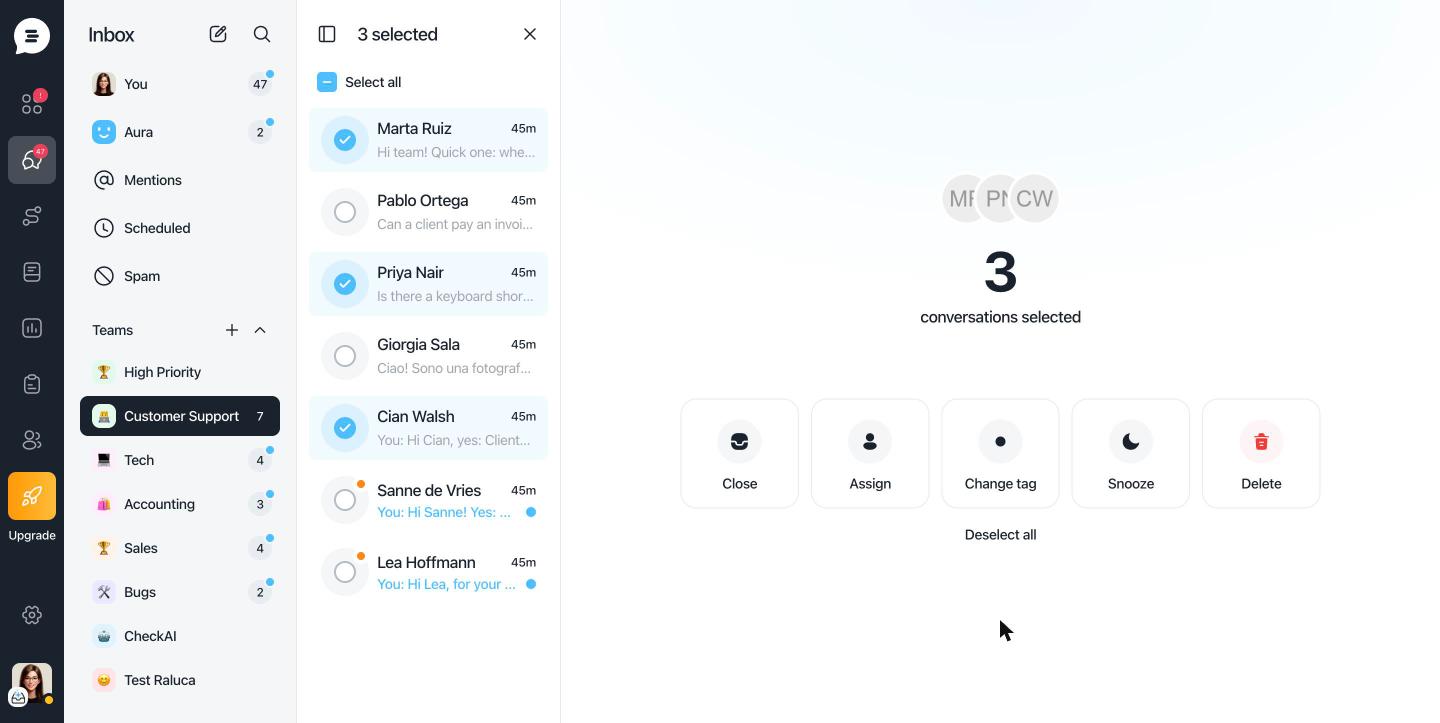
  1. In Inbox, hover a conversation's avatar and tick the round checkbox.
  2. Click more rows to add them, or click Select all to pick the whole inbox, then untick the ones to leave out.
  3. In the panel on the right, choose Close, Assign, Change tag, Snooze or Delete, then Apply.
  • Released: November 16, 2026

Customerly inbox with three conversations ticked and the bulk actions panel showing Close, Assign, Change tag, Snooze and Delete

What's included

  • Five actions in one panel: close (the CSAT survey and AI classification stay off unless you switch them on), assign to a teammate or team, change or remove the tag, snooze until later, delete.
  • Whole inboxes: select every conversation in an inbox, team inbox or view, including the ones further down the list.
  • Big jobs in the background: above 50 conversations, keep working while progress moves to a bar at the top of the app.
  • No surprises: conversations already in that state are skipped and counted.
  • A clear trail: Settings → Inbox → Bulk actions lists the latest large actions and who started them.
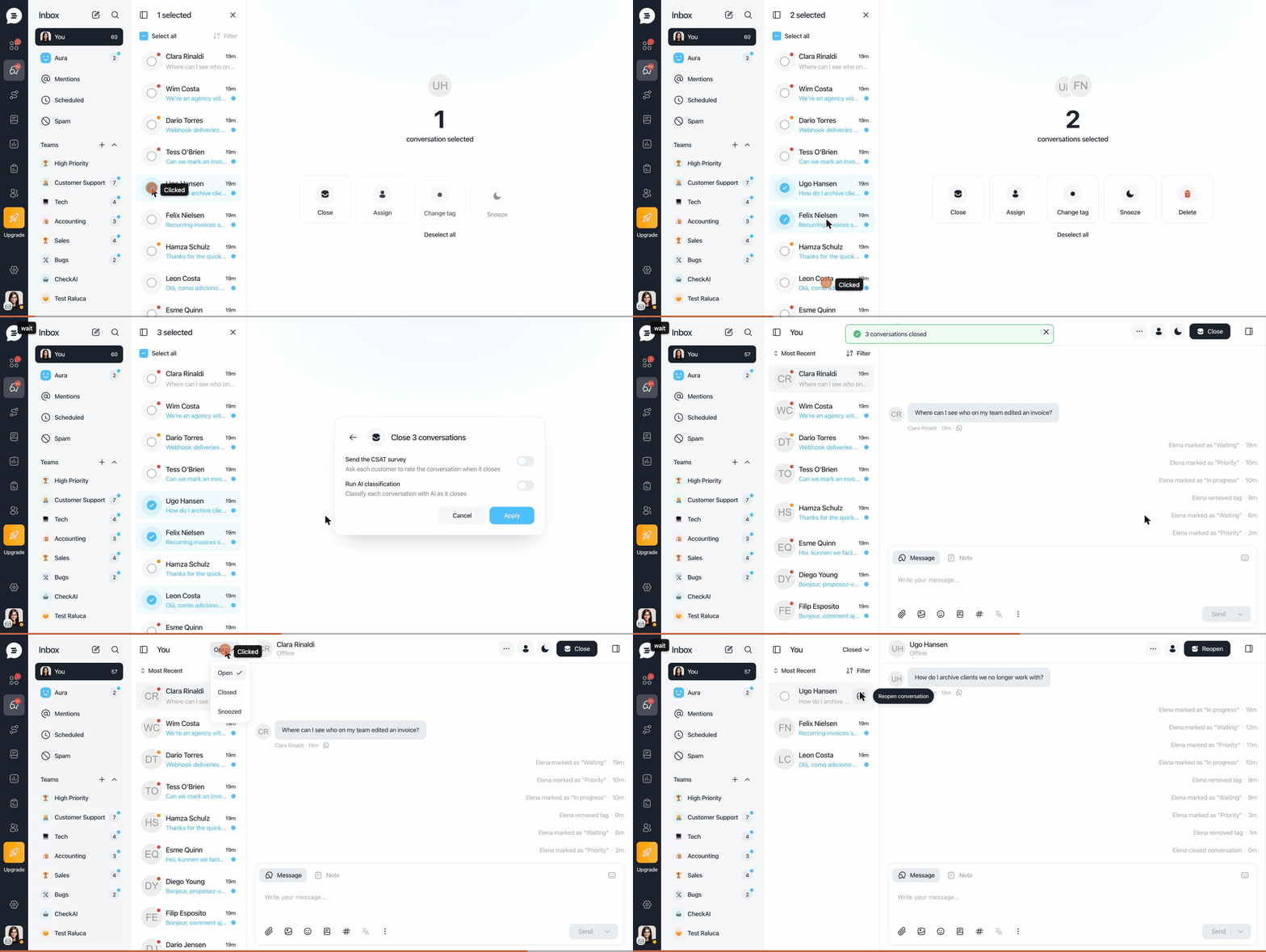
Animation of a teammate ticking several conversations in the Customerly inbox and closing them all at once from the bulk actions panel

Who can use it

Every teammate who can reply to conversations can select them and run every bulk action. Selecting a whole inbox and opening the history need the Settings permission, usually admins.

Our advice

Start your day in You → Open: close everything already answered in one go, then assign the rest to the right team. Keep Delete for spam: deleted conversations can't be recovered.
Related updates

See the full changelog
Product recap

September 2026: a Spam folder, WhatsApp Business app coexistence and a faster app

Spam emails get their own folder, you can keep replying from the WhatsApp Business app on a connected number, and the web app starts faster.

  • Emails flagged as spam by email providers land in a separate Spam folder
  • Connect a number you already use in the WhatsApp Business app and keep using the app
  • We updated the web app and the messenger to make them faster
  • New onMessengerLoadFailed callback for developers
InboxWhatsApp & channelsPlatform & securityAPI & developers
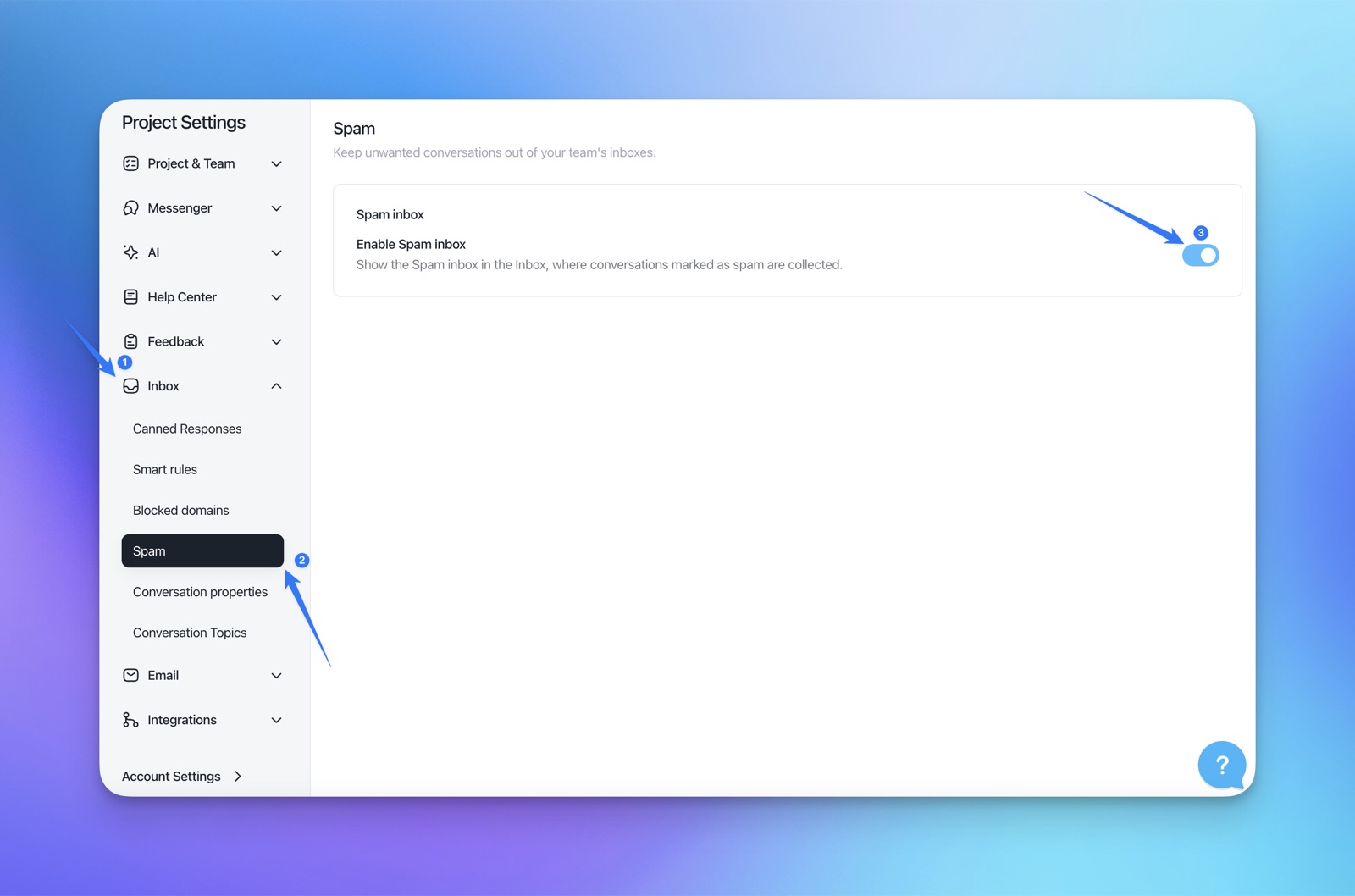
Customerly Project Settings with Inbox → Spam open and the Enable Spam inbox toggle switched on
Product recap

July 2026: merge duplicate contacts and filter by how often events happen

Merge duplicate contacts into one history, segment contacts by how many times they did something and when, and a richer contact activity timeline.

  • Merge duplicate contacts into one record with one complete history
  • Filter contacts by how many times an event happened, inside a time window
  • Contact activity timeline with infinite scroll and new activity types
  • Browser back and forward buttons now work in the inbox
Contacts & CRMEmail marketingHelp CenterInbox
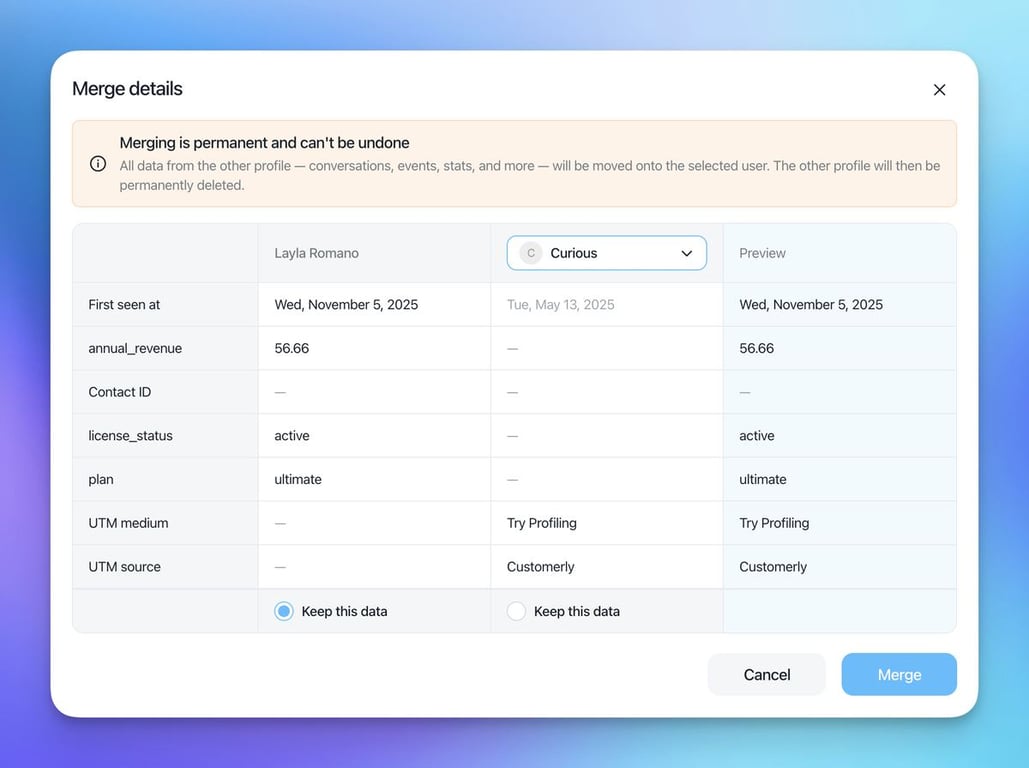
Merge details dialog comparing two contact profiles field by field, with First seen at dates, Keep this data options, a preview column and a warning that merging is permanent
New feature

Inbox views: save filtered lists of conversations and share them

Save a filtered slice of your inbox as a view, keep it private or share it with your team, and reopen it with one click from the inbox sidebar.

  • Save any combination of filters as a view in the inbox sidebar
  • Keep a view private or share it with every teammate
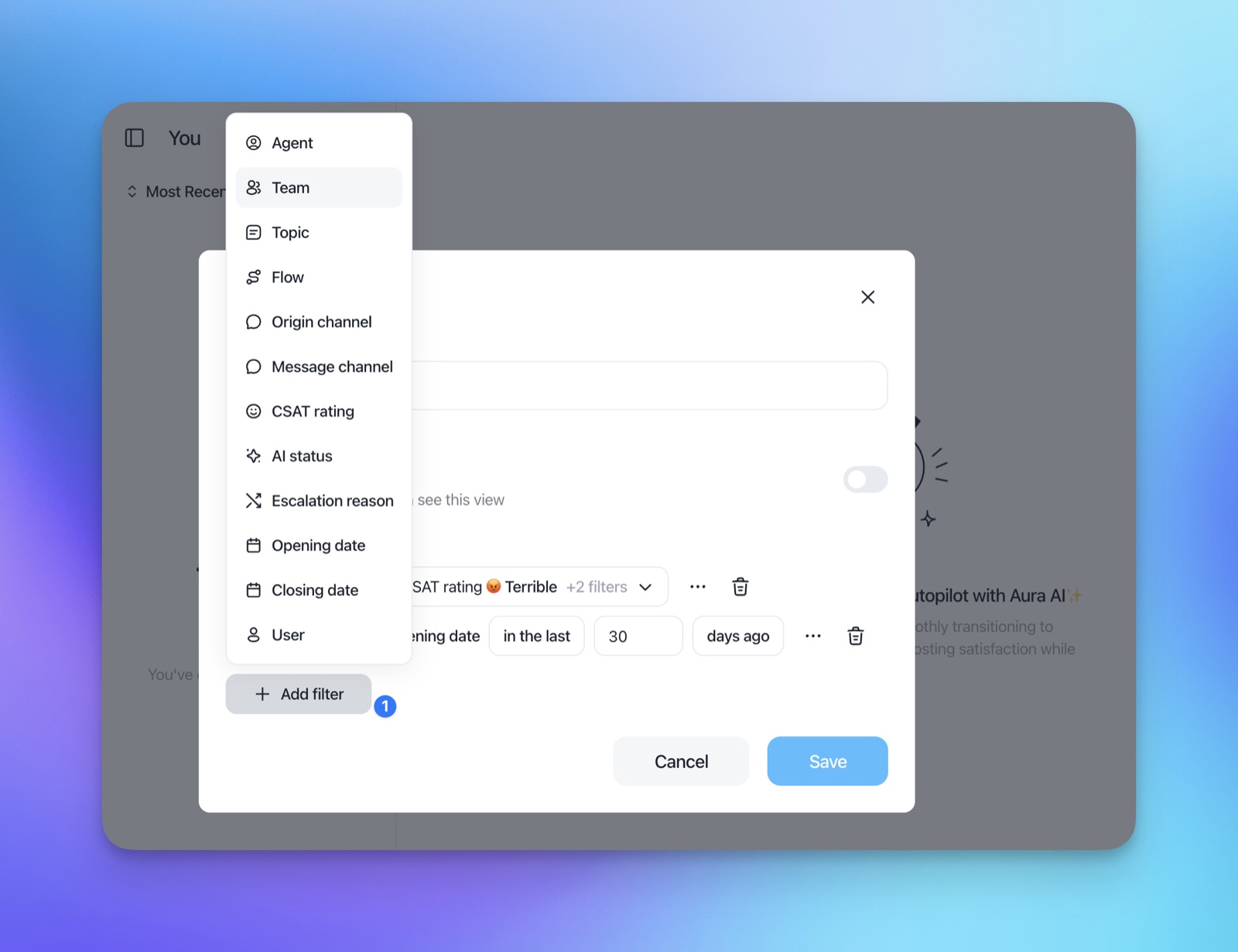
  • Filter by agent, team, topic, flow, channel, CSAT, AI status, escalation reason and dates
  • Add contact filters too: property, event, tag, list, campaign and company
InboxReports & insights
Edit view dialog in the Customerly inbox with the Add filter menu open, listing Agent, Team, Topic, Flow, Origin channel, Message channel, CSAT rating, AI status, Escalation reason, Opening date, Closing date and User

AI Support That Sets You Apart.
Start Leading Today.

AI Support Software